Quick Start Guide
Get your Nillion wallet set up in under 2 minutes!
Step 1: Open the Extension
Click the Nillion Keychain icon in your Chrome toolbar.
You'll see the onboarding screen with two options:
- Create New Key - Generate a brand new wallet
- Import Key - Import an existing private key
Step 2: Choose Your Setup Method
Option A: Create New Key (Recommended for New Users)
- Click "Create New Key"
- A new keypair is generated automatically
- Proceed to Step 3 to set your password
Option B: Import Existing Key
- Click "Import Key"
- Enter your private key (hexadecimal format)
Example: a1b2c3d4e5f6... - Click "OK"
- If valid, proceed to Step 3
Never share your private key with anyone! It provides full access to your wallet.
Step 3: Set Your Password
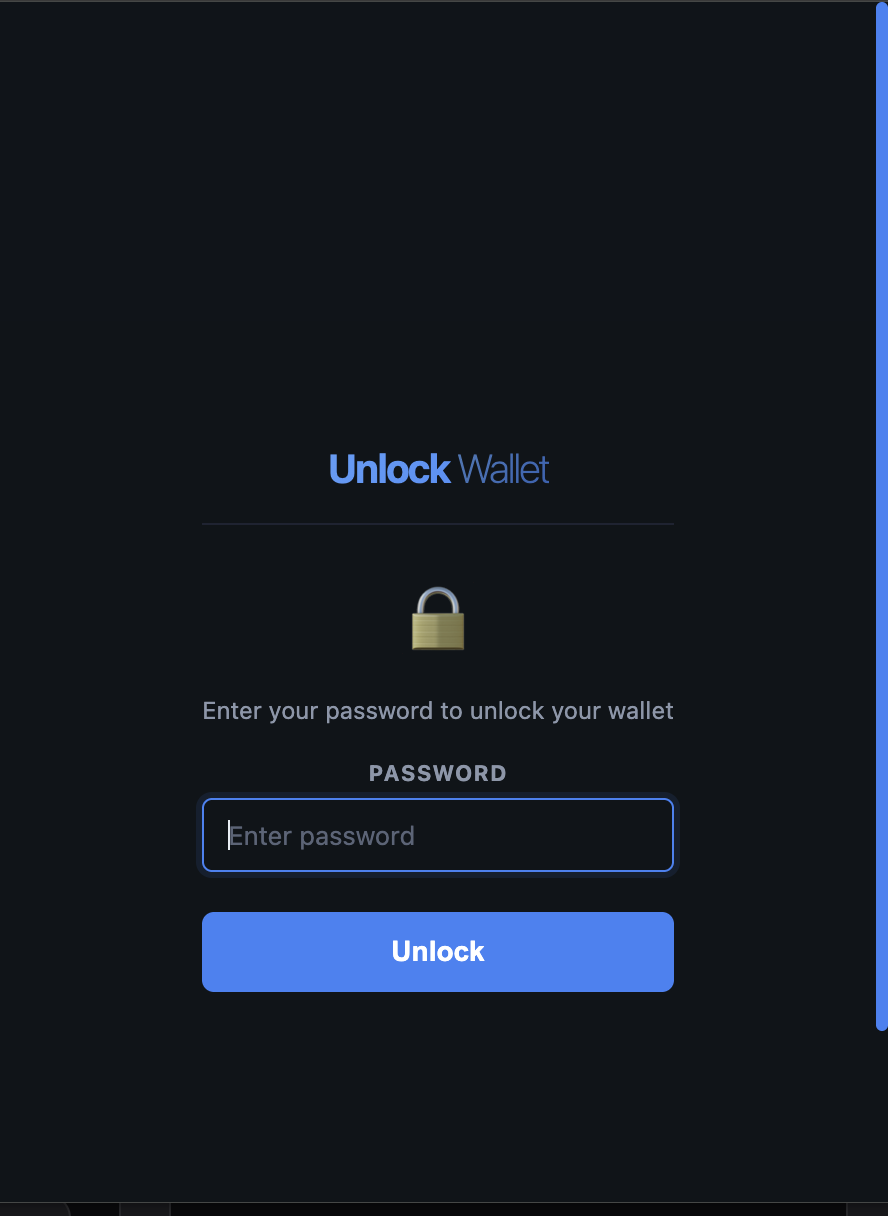
After creating or importing your key, you'll be prompted to set a password.
-
Enter Password
- Minimum 8 characters
- Use a strong, unique password
- Mix letters, numbers, and symbols
-
Confirm Password
- Re-enter the same password
- Must match exactly
-
Click "Create Wallet"
Your private key is now encrypted and stored securely!
- Password: Unlocks your encrypted wallet (you can change it later)
- Private Key: Your actual identity (cannot be changed, backup required)
Step 4: Your Wallet is Ready!
🎉 Congratulations! Your wallet is now set up and unlocked.
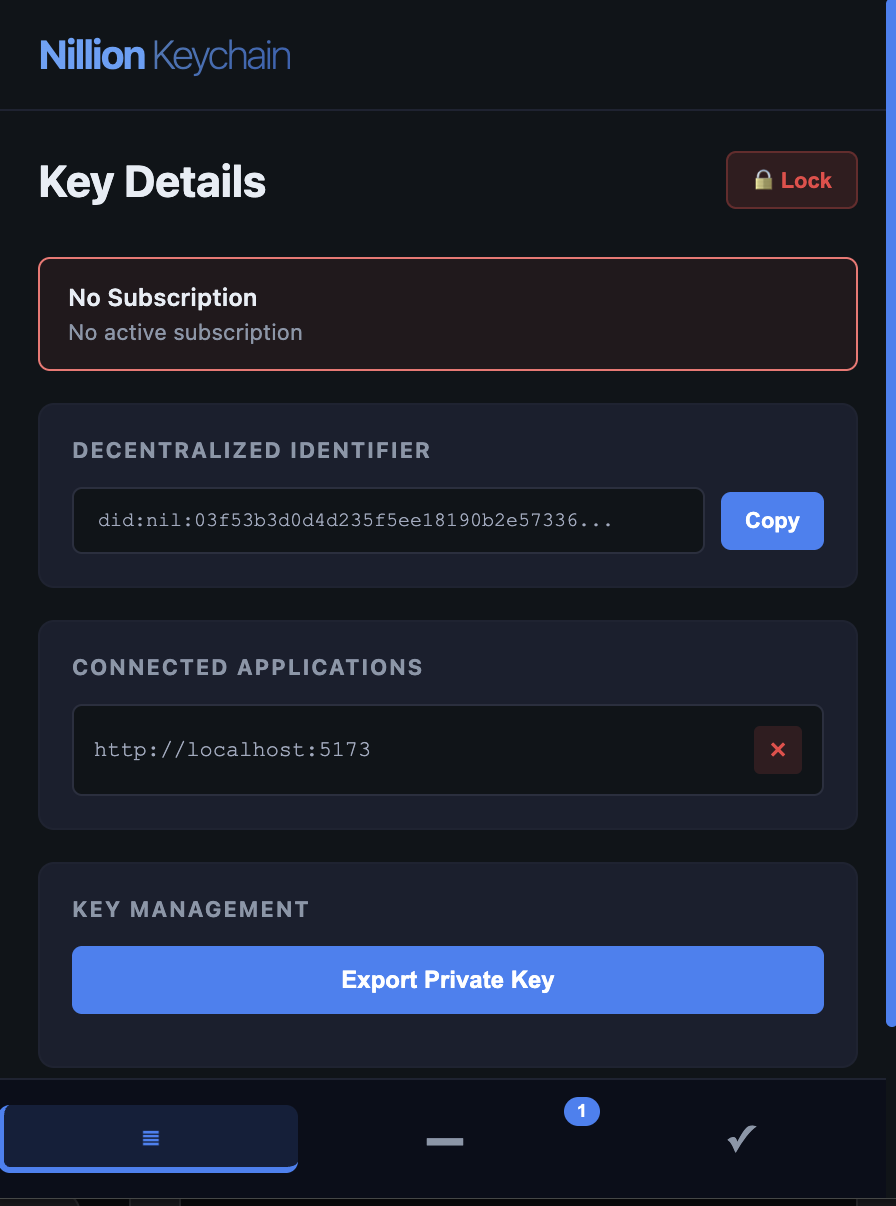
You'll see the main wallet interface with:
- Your DID (Decentralized Identifier)
- Connected Applications (empty for now)
- Key Management options
Quick Tour
Navigation Tabs
At the bottom of the extension, you'll find three tabs:
📋 Wallet Tab (Default)
- View your DID
- Manage connected applications
- Export private key
- Lock wallet
📄 Documents Tab
- View encrypted documents stored on Nillion
- Manage document permissions
- Delete documents
✓ Approvals Tab
- Approve/deny connection requests
- Approve/deny transaction requests
- Review permissions
Essential First Steps
1. Backup Your Private Key
If you lose your private key, you cannot recover your wallet. No one can help you - not even us!
How to backup:
-
Go to Wallet tab
-
Click "Export Private Key"
-
Your key will be revealed
-
Copy it to a secure location:
- Password manager (recommended)
- Encrypted file on USB drive
- Written on paper (stored safely)
-
Never:
- Email it to yourself
- Store in cloud services
- Share with anyone
- Take screenshots
2. Lock Your Wallet
Get familiar with the lock feature for security:
- Click the 🔒 Lock button in the Wallet tab
- Your wallet locks immediately
- Enter your password to unlock
- Wallet auto-locks when browser closes
3. Test Connection with a dApp
Try connecting to a Nillion-enabled application:
- Visit a Nillion dApp (e.g., demo.nillion.app)
- Click "Connect Wallet"
- Nillion Keychain popup appears
- Review the connection request
- Click "Approve"
- You're now connected!